

9 Essential Desktop Apps Every Dual Monitor User Should Have
There are many things you can use a second monitor for. Professionals can use one for live previews as they code, finance traders can use it to track ongoing changes, and even casual gamers can benefit from playing YouTube on the side while grinding new gear. However, not everyone needs a second monitor — for some, an ultrawide is a much better purchase.
If you've decided on a second monitor, it's important that you know all the tips and tricks for such a setup. There's a lot you can do with the native multi-monitor tools on Windows, but downloading certain third-party apps opens up a new world of configurability.
The best apps target common pain points that users run into while managing multiple displays. Problems like your cursor wandering to a different monitor, frustration with managing brightness across displays, or if you just want to personalize your home screen with dynamic wallpapers beyond what Windows offers, these apps are essential to your dual-monitor setup.
Microsoft PowerToys
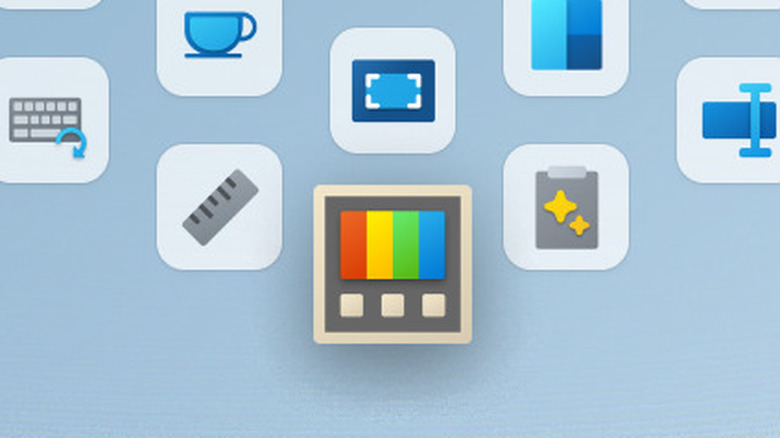
One of the most well-known programs for multi-monitor customization, PowerToys is an open-source app designed by Microsoft to provide users with advanced Windows utilities. Some of these include Mouse Jump, which helps you quickly move your cursor across multiple monitors, and Power Display, which lets you control each of your monitors' brightness and other elements without using the physical buttons on your display. There's also Screen Ruler to accurately measure your screen, which is especially useful if you're syncing two monitors with different sizes and resolutions, and Workspaces, which allows you to save custom window layouts for each monitor.
You can download PowerToys from the Microsoft Store website or from the Microsoft Store app. Alternatively, you can download it from its GitHub page: click on the "PowerToysSetup" file under Assets — arm64.exe if your computer runs ARM architecture and x64.exe if it doesn't. With the app installed, you can open it to configure which utilities you want access to. You can also click on the PowerToys icon in the system tray to access certain utilities without needing to open the app.
Apart from the features mentioned above, the app offers many that benefit those without multiple monitors as well. Mouse Without Borders, for example, allows you to control multiple computers with the same keyboard and mouse, turning a spare laptop or tablet into a secondary display.
DisplayFusion

DisplayFusion is another program that's considered one of the best dual-monitor apps. Developed by Binary Fortress Software, you can download DisplayFusion for free from the official website, or you can buy the program from its Steam page. The free version comes with limited features, though, which means you have to pay to get the entire suite of multi-monitor essentials. If you don't enter a license key while installing, you'll get an automatic 30-day trial of the pro features, and when the time is up, the app will automatically revert to the free version if you don't buy it. If the app doesn't open after the download is completed, you can access the features from the DisplayFusion icon on your taskbar.
Useful features for multi-monitor setups include Multi-Monitor Taskbars, which add a fully functional separate taskbar to each connected monitor; Monitor Fading, which can be used to automatically dim inactive monitors so users can focus on a specific task; and Alt+Tab Handler, which gives users precise control over how the Alt+Tab window behaves across screens. The app comes with several useful general features as well, such as Monitor Splitting to divide a single monitor into multiple virtual ones, Remote Control to control the app from your phone, and Triggers, which lets you automate certain tasks.
However, these features are only available if you're paying for the app. You still get a number of general utilities on the free version, but you can't access the more advanced features that make the app essential for multiple monitors.
Monarch
Just because you have multiple monitors doesn't mean you want them running at all times, especially if you have OLEDs which are prone to burn-in if not actively being used. However, reaching out to physically disconnect a single monitor whenever you want to turn it off can be a pain. This is where Monarch comes in handy, as it fixes this problem by letting you turn off any screen straight from your desktop with a single click. This helps prevent burn-in on a secondary OLED panel and makes it easier to focus on the task at hand.
You can download the app from GitHub, where it's maintained by Nuzair46, the sole developer. When you launch the app, Monarch will detect your connected monitors and display your current monitor layout. Select the monitor you want to turn off and click Detach, and click Restore to turn it back on.
Besides detaching and reattaching monitors, Monarch also has features like Profile Saving, which can save your entire monitor configuration and restore it with one click, and Tray Menu Controls, which lets you access common actions such as restoring displays or opening the app directly from the Windows system tray.
Dual Monitor Tools
Whether you use multiple monitors for work, gaming, or multitasking, Dual Monitor Tools provides a range of features designed to make your multi-monitor setup more efficient. It's an open-source app developed by independent developer shogunxam, and you can download it for free from its SourceForge page.
Like PowerToys, the app doesn't focus on solving a single issue; instead, it has a wide variety of essential dual-monitor features. These include Cursor, which locks your cursor to your current monitor so you don't accidentally move to a different one when you're playing a game or trying to move an item on your screen. There's also Swap Screen, which instantly moves the active window or all active windows from one monitor to another using a hotkey.
The app offers many other features as well, but most of these are natively supported in Windows 10 and 11 today, such as the ability to make your wallpaper span across monitors and to take instant screenshots. Apart from purely dual-monitor uses, the app also comes with features like Launcher, which lets you launch programs in specific orientations and sizes, which is beneficial for both single- and multi-monitor setups.
Actual Multiple Monitors
If you regularly use two or more monitors and want to improve your experience, Actual Multiple Monitors is a handy Windows utility worth checking out. Developed by Actual Tools, it's designed to make multi-monitor setups easier to use by adding features that go beyond what Windows offers by default.
Some of its standout features include Multi-Monitor Taskbar, with which you can add a fully functional taskbar to every connected monitor, making it much easier to switch between apps without having to move your mouse back to the primary monitor. There's also Desktop Mirroring, which lets you mirror an entire monitor, a single window, or a selected area of your desktop onto another screen, and Lock Mouse, which keeps the cursor on your gaming monitor so it doesn't accidentally move to another display while gaming.
To download Actual Multiple Monitors, visit the official download page. The software includes a free trial, after which you can decide whether you want to purchase a license to continue using the software. It's an incredibly useful program if you have multiple monitors, but others on this list offer similar features without any payments attached.
Monitorian
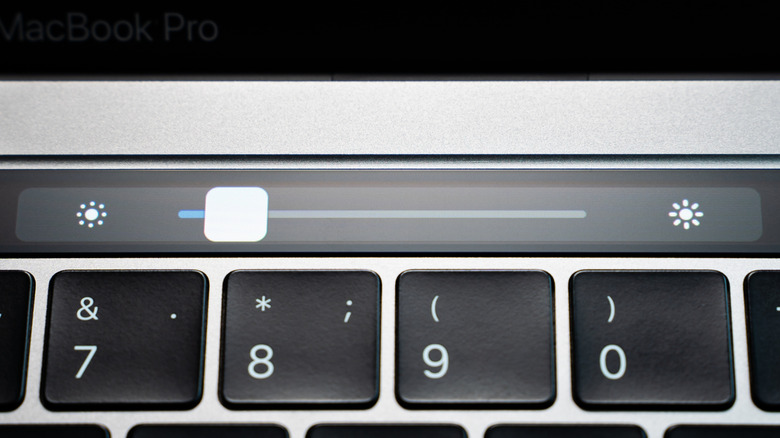
If you use a dual or multi-monitor setup, adjusting the brightness of each display can quickly become frustrating, especially when you have to rely on the physical buttons built into your monitors. Monitorian is a free, lightweight open-source utility, developed by solo developer emoacht, that solves this problem by letting you control the brightness of your screens directly from Windows.
Monitorian works by using DDC/CI (Display Data Channel/Command Interface), a communication standard that allows Windows software to send commands directly to compatible monitors. If your monitor supports DDC/CI and the feature is enabled, the app can adjust the brightness without you needing to touch the monitor's built-in buttons. You can target specific monitors for this or change the brightness of your entire setup simultaneously. The app lets you rename your monitors for easier identification as well.
You can download the app from the official website, from its GitHub page, or from the Microsoft Store. With the app installed, you can launch Monitorian directly or access it from the system tray whenever you want to adjust a monitor's brightness.
Little Big Mouse
One of the most common mistakes people make with setting up multiple monitors is not aligning different displays properly. If your screens have different resolutions or sizes, moving your cursor from one screen to another can be jarring. Little Big Mouse is a free, open-source Windows utility that solves this problem by making cursor movement smoother and more accurate across multiple displays. Created by the developer mgth, the software is especially useful for setups that combine displays with different resolutions, for instance, a 4K display paired with a 1080p one.
The primary feature of the app is the ability to reduce cursor friction while you move from one monitor to another. There's also Border Resistance, which stops your cursor from accidentally crossing over to a different monitor, and Display Size Adjustments, which gives you more control over how you align your monitors. Another useful feature is Screen Looping, which loops your cursor between monitors; if you move it across the left edge of your leftmost monitor, it crosses over the right edge of your rightmost one — great for those using three or more monitors, which normally requires a lot of wrist movement.
You can easily download Little Big Mouse from the GitHub Release page by going to the latest version and downloading the .exe file under Assets.
Wallpaper Engine
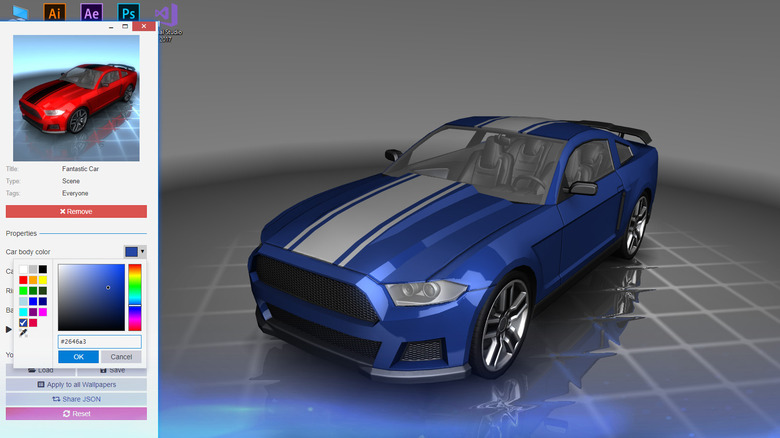
Personalizing your multi-monitor PC setup is just as important as using utilities to make your experience smoother. You already get a decent level of customization with Windows, having the ability to use different wallpapers on each monitor or to span a single image across them, but there's a lot more you can do using a program like Wallpaper Engine.
This is a paid program developed by the Wallpaper Engine team that you can download from Steam for $4.99. Unlike all the others on this list, this one is purely cosmetic in nature. However, if you want to manage the wallpapers of multiple monitors, it's hard to find any program more complete than this. It comes with a wide variety of wallpapers, but the main appeal is in the dynamic backgrounds that have animations, whereas Windows only supports static images. You can interact with these wallpapers in real time, using your cursor to change them or syncing animations with your system audio.
The reason this works so well with multi-monitor setups is that you can sync the same animated visual across different monitors or have different wallpapers with synced effects, such as lighting, particle effects, and animations. You can also create your own animated wallpapers and make custom playlists that automatically change your desktop wallpaper — all synced across your displays.
Twinkle Tray

Like Monitorian, Twinkle Tray is another open-source software that uses DDC/CI to adjust monitor brightness, without you needing to tinker with physical buttons on your monitor. The app allows you to change brightness settings across all your displays at once, or you can target specific screens with it. Twinkle Tray has some more advanced features beyond basic brightness control as well, such as the ability to update your brightness settings automatically based on the time of day, and custom hotkeys that instantly change your screen's brightness.
You can download the app for free from the official Twinkle Tray website or from the Microsoft Store. Alternatively, you can download any specific version from the GitHub repository. After installation, launch Twinkle Tray from the Start Menu to configure it. Whenever you need to adjust the brightness, you can find the Twinkle Tray icon in the system tray beside network and volume controls.