

Your iPhone's Action Button Just Got A Lot More Powerful Thanks To iOS 27
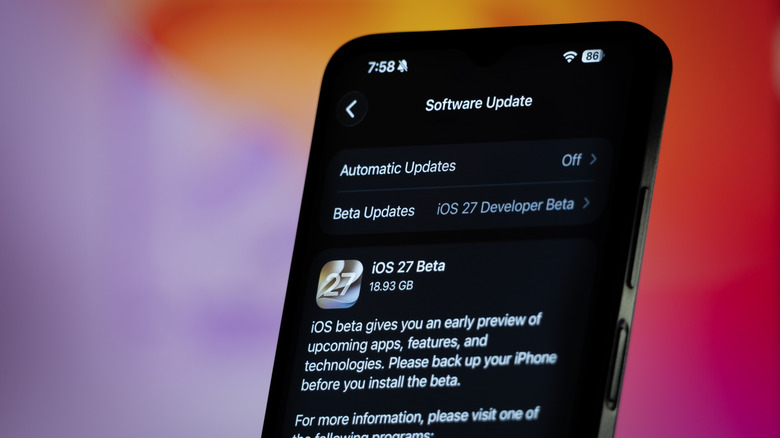
Apple's iOS 27 is set to make compatible iPhones smarter and more capable than ever. With this huge update that's scheduled for release in mid-September, there are plenty to look forward to. You have settings to help keep kids safer while using their devices and give you more control over how Liquid Glass looks, and — iPhone 15 Pro, iPhone 15 Pro Max, and newer — will get an AI-powered Siri. But beyond these software enhancements, Apple is also upgrading one hardware feature on the iPhone: the Action Button.
First introduced in the iPhone 15 Pro and Pro Max, the Action Button is a customizable button located just above the volume buttons. It did effectively replace the old ring/mute switch but offered much more functionality. You can use the Action Button for a wide range of tasks, from as simple as turning on the flashlight to as complex as activating an iPhone Shortcut of your choice. Yes, the Action Button can be linked to a Shortcut, making it more versatile. But while that sounds promising in theory, casual users often find the Shortcuts app quite intimidating. In turn, they tend to just go for the premade Shortcuts found in the app and on platforms like Reddit and YouTube. That means the Action Button usually goes underused.
This, however, is set to change with the help of one of the new Apple Intelligence features — Describe a Shortcut. With this tool, you now have the power to create a custom iPhone Shortcut that fits your needs exactly, even without learning the ins and outs of the Shortcuts app.
How does 'Describe a shortcut' work?
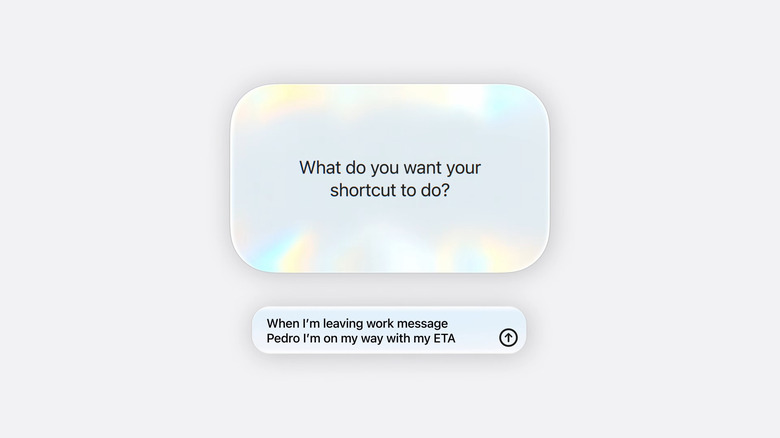
The AI-powered Describe a Shortcut feature on iOS 27 is designed to eliminate the hassle of creating an iPhone Shortcut from scratch. Instead of manually adding the sequence of actions for the custom Shortcut, simply type what you want it to do in natural language. Then, just sit back as Apple Intelligence analyzes your prompt and automatically builds the Shortcut for you.
If you want to test out this feature, download iOS 27 Beta to your iPhone first. The process then goes like this: launch the Shortcuts app, tap the New Shortcut button at the bottom, and type your prompt. It can be a straightforward request like "Set an alarm for 9 a.m." Or you can make it as elaborate as you need, such as "Turn on color filters, switch on Do Not Disturb, and start a timer for 25 minutes." Afterwards, you'll see the result of the generated shortcut. Hit the play button to test it out. If you want to make any changes, just type your edit in the chatbox at the bottom and wait for Apple Intelligence to regenerate the Shortcut. To edit the Shortcut manually, press the hamburger icon in the upper right corner. This will open the Shortcut editor, with the existing actions.
Once you're happy with the generated Shortcut, you can proceed with assigning it to the Action Button. To do so, head over to the Settings app and select Action Button. Then, go to the Shortcut option and tap Choose a Shortcut. From the list, pick the Shortcut you just created. Now, when you press and hold the Action Button, your AI-generated Shortcut will automatically run.