

This Iconic Feature Of Samsung Phones Isn't Gone, It's Just Hidden In The Settings
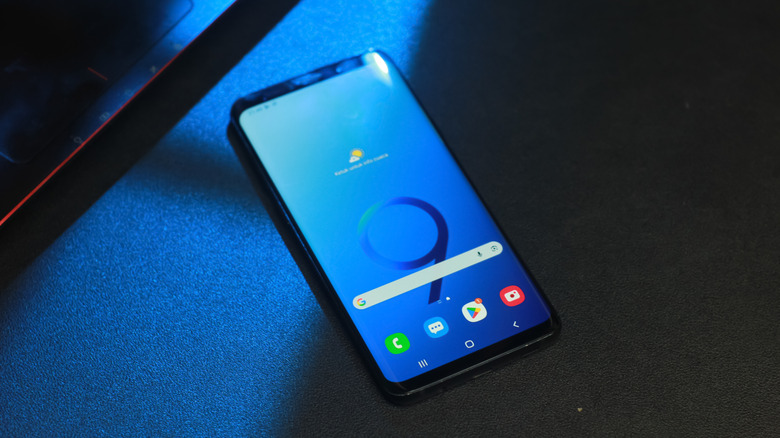
Samsung phones used to feature an LED notification light on the top-left corner of the screen. It would let you know what needs attention based on the color. If the notification light was blue and blinking, it meant that there was a missed call, message, or some other notification waiting. If it was red and blinking, it meant that your battery was low. When it was glowing green while connected to a charger, it meant that your phone was fully charged. That tiny dot gave you quick information about some events on your phone without you having to wake it.
As phones evolve, space becomes a premium. It might seem like a little light, but for mobile phone designers, that real estate is for more new and exciting features. As a result, Samsung removed this cool feature from Galaxy devices when it debuted the S10 in 2019. Samsung wanted its new flagships to take advantage of the new big bezel-less Infinity Display for videos, games, and browsing. Unfortunately, the notification light was getting in the way of the new AMOLED screen – it had to go. In its place, Samsung recommended users switch to Edge lighting. It's a feature hidden in the Settings app, and you just need to enable it and customize it to your liking.
How to turn on Edge Lighting on Samsung Galaxy phones
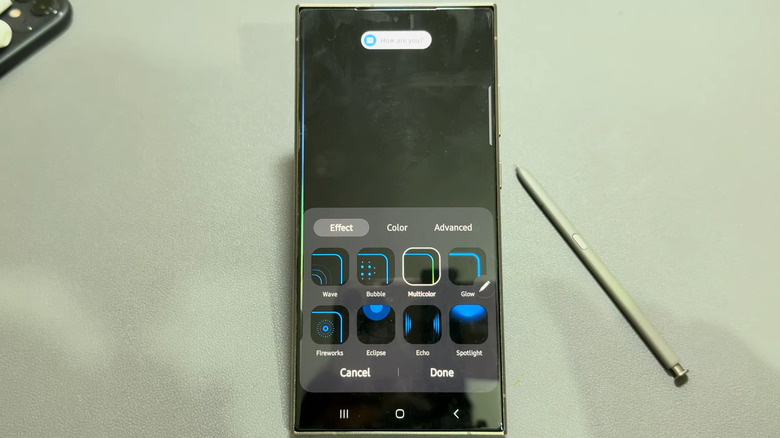
Edge lighting has been around since the Galaxy S8, when Samsung thought edge displays were the future. Now it's the official replacement for the LED notification light. Edge lighting turns the edge of your phone's display into a notification light, playing various effects when you receive notifications. Here's how to easily enable Edge lighting:
-
Open the Settings app.
-
Tap "Notifications."
-
Tap "Notification pop-up style."
-
Toggle on "Show brief pop-ups even while the screen is off" if you want Edge lighting to show when your phone's screen is off.
-
Tap "Edge lighting style" or "Add lighting effects."
-
In the "Effects" tab, tap on the effect you want to use from options such as "Basic," "Glitter," "Echo," and others.
-
Select the "Colors" tab and choose the color of the effect.
-
You can also select the "Advanced" tab and tweak the "Transparency," "Width," and "Duration."
-
Tap "Done."