

5 Useful Features You Probably Didn't Realize A Google Pixel Watch Offers
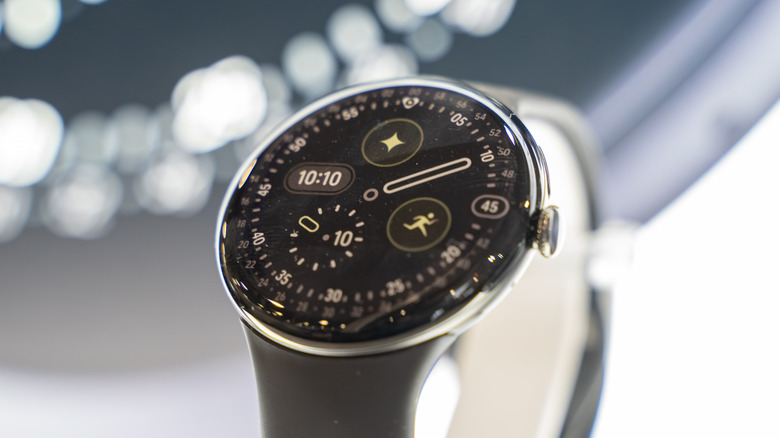
Google's smartwatches have improved significantly over the years, with the Google Pixel Watch 4 among the best you can buy today. It tells the time, tracks your steps, has sensors for health tracking, lets you see phone notifications, manages media playback, and anything else you'd want from a smartwatch. These features are well-known and part of most users' daily lives, but your Pixel Watch also has a ton of cool hidden features you probably didn't know about.
Much like the new features coming to WearOS 7 later this year, there are plenty of features already on your Google Pixel Watch that you've likely never seen before. Some of these are fairly recent additions to Android smartwatches, while others have existed since the first Pixel Watch came out in 2022. These include things that make daily tasks much faster, ways to control your smartphone with your watch, and a notification that pops up whenever you're about to leave your phone behind.
1. Various hand gestures
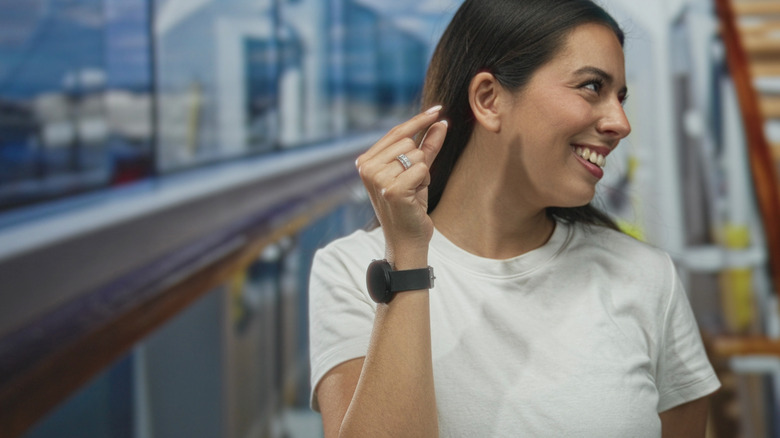
Gestures and shortcuts are a welcome addition on any device, but perhaps even more so on smartwatches, where smaller screens make it harder to rely on the touch display for every little thing. The Pixel Watch comes with many gestures, some of which also exist on other smartwatches like Samsung's Galaxy Watches.
There are still some exclusive gestures, though. The one you'll likely be using most often is the double pinch. To use this, you tap your thumb and index finger together twice, as if you're pinching something. This motion can stop or dismiss timers, send Quick Replies, scroll through notifications, and take pictures with the Camera app. There's also the wrist-turn gesture, where you rotate your wrist to move the watch away from you quickly. This is used to hide expanded notifications, silence calls, and dismiss alarms. There's also the Pixel-exclusive Raise to Talk gesture, where you bring your watch close to your ear to prompt Gemini with your voice.
The gestures are turned on by default, and you can learn more about them in Settings. To do so, either go to General, Pixel Tips, and Gestures, or Gestures, Hand Gestures, and Education. You can also disable these if you don't plan on using them. To turn off gestures on your Pixel Watch, open Settings, go to Gestures, then Hand Gestures, and toggle off the switches for any you don't want.
2. The ability to take pictures on your phone

The Pixel Watch doesn't have a physical camera on it, but there is a Camera app on Wear OS. This might seem confusing at first, but it exists for one very useful feature: controlling the camera on your phone using your Pixel Watch.
With the Camera app installed on your Pixel Watch and a paired smartphone open, you can set your phone down on a tripod or a stand and take pictures from your watch's screen. You can preview how the picture or video looks here before pressing the capture button, and you can even use the double pinch gesture to start recording a video or to take a picture.
The ability to do this is turned on by default so long as you're using the Camera app, but you have to download the app itself manually from the Play Store. Launching the app on your smartwatch automatically opens the camera on your phone, and you can set whether a photo gets taken instantly or if there's a timer from within your watch's Camera app. You can also adjust the zoom, choose whether to use the rear or the front camera, and more, all on your watch.
3. NFC payments without opening the Wallets app
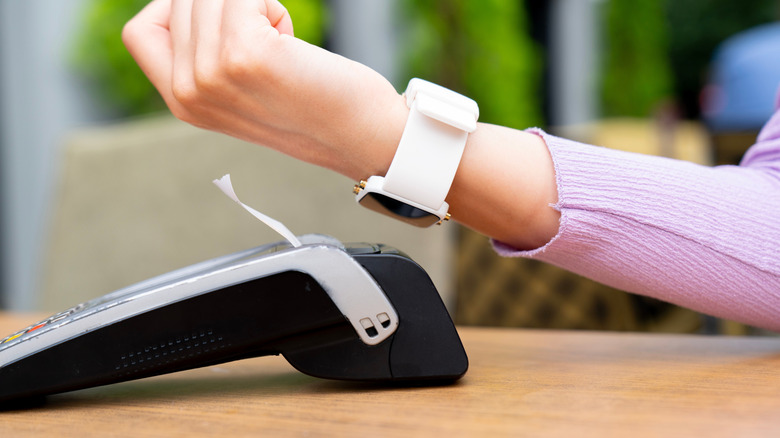
Smartwatches are all about convenience. The convenience of being able to see updates on your wrist, track important health stats, skip a song you don't like, and also pay for things. NFC has been available on Google smartwatches for a long while now, letting you open the Wallet app on your Pixel Watch to tap to pay for groceries and such. This feature, while certainly convenient, had some drawbacks: opening an app wasn't much quicker than taking your phone or a card out to pay.
Google smoothed this experience with express pay in a recent update. With express pay enabled, you can hold an unlocked Pixel Watch in front of a scanner for seamless payments without opening an app. Google states that this is incredibly secure, as the watch uses an algorithm to determine whether you're actually intending to pay.
You can enable express pay on your Google Pixel Watch using the Pixel Watch app on your phone. Inside the app, tap on Google, then Google Wallet, and then Wallet Settings. You can then tap on "Tap to pay and transit" and turn on the express pay switch from here. Do note that this only works with a paired smartphone and needs a PIN or a password on your Pixel Watch. The feature additionally only works with wrist detection turned on.
4. Offline Google Maps
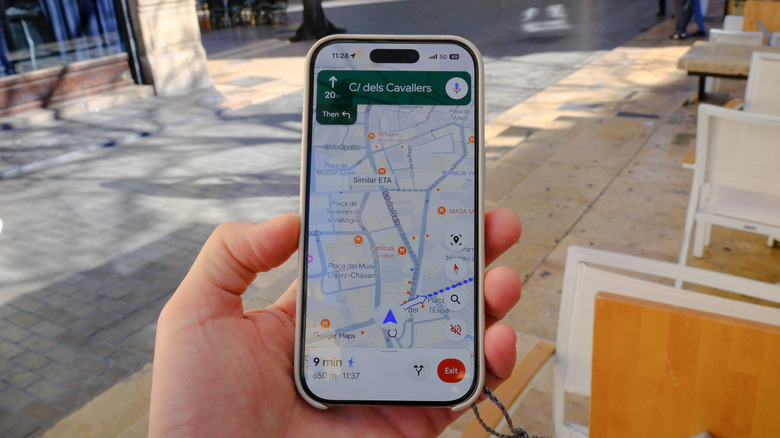
Getting to a place you've never been to before is much easier today than it was just a few decades ago. You don't have to haul around a large physical map, spend ages figuring out where you currently are, and there's no need to stop every so often to ask for directions. This is due to how convenient travel apps like Google Maps and their alternatives make getting from one place to another, so long as you have an internet connection.
The Google Maps app on your phone can download offline maps for specific areas, and you can use it to download them to view on your Pixel Watch as well. To do this, search for a place using the Google Maps app on a smartphone that's paired with your Pixel Watch. Tap the address, click the three dots at the bottom right, then tap Download Offline.
When you next charge your Pixel Watch, the offline map will sync with your phone, and you can use it on your smartwatch. Alternatively, you can open the Google Maps app on your watch and go to Offline Maps to download any that you've downloaded on your paired smartphone. After that's done, you can view the map on your Pixel Watch, track your location, and view certain routes.
5. Notifications for when you forget your phone

Most of us bring our phones everywhere we go, but we don't always remember to do so. Fortunately, most smartwatches — such as your Galaxy or Apple Watch — have had a feature that tells you if you're leaving your phone behind for a while now. This feature was also added to Pixel Watches earlier this year.
The feature isn't enabled by default, but you can set it up easily in the Google Pixel Watch app on a smartphone paired with your watch. Inside the app, select your watch, go to Watch Preferences, then Security. You'll get the option to enable "Notify when left behind" here.
With the feature turned on, your Pixel Watch will use your location and Bluetooth to see if you've moved a certain distance away from your phone and pop a notification on your watch if you have. Also note that this feature requires Bluetooth to be enabled on both your smartphone and Pixel Watch to work.