

5 Things Your Android Tablet's USB-C Port Can Do (Besides Charging)
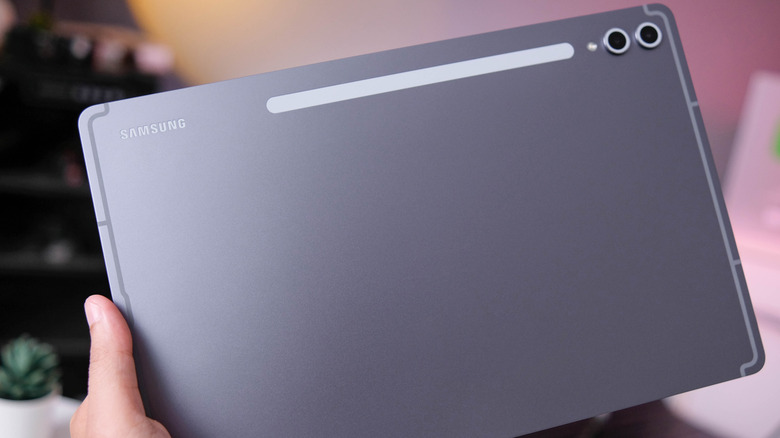
If you have an Android tablet, chances are it comes with a USB-C port. Most modern devices, including laptops, smartphones, and tablets, now feature USB-C ports for charging and other uses. But for most people, the USB-C port still serves only one purpose, which is charging. As a result, they miss out on a wide array of uses that can actually improve the Android experience and streamline workflows.
The reason behind USB-C replacing other ports isn't just convenience. It offers faster charging speeds and a stronger power draw. And it's reversible, ending the confusion about which side of the USB-A connector faces up. Maybe best of all, USB-C ports have transformed tablets from a simple secondary device into a productivity powerhouse, adding functionality that simply wasn't available before.
Below, we've put together a list of five things your tablet's USB port can do, beyond simple charging, ranging from boosting storage to extending your display and beyond. Keep in mind that not every Android tablet supports all these functionalities, despite featuring a USB-C port. But most modern models generally do. If you are unsure, check the manufacturer's website or the tablet's manual to confirm.
Expand storage
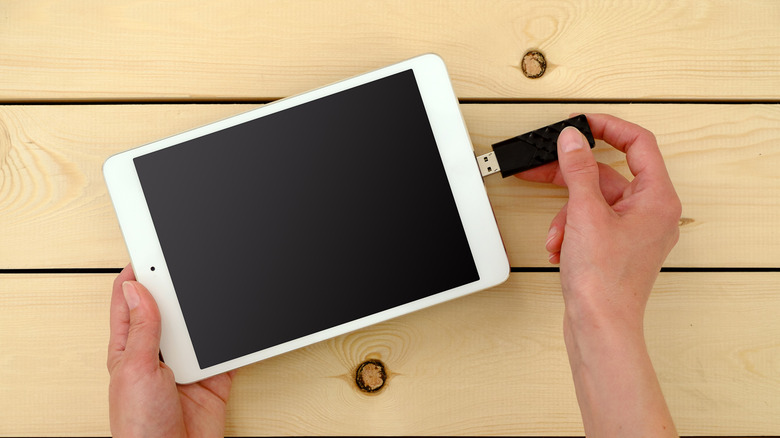
When it comes to storage, most budget Android tablets still cap out at 64 gigabytes (GB) or 128 GB. That might be enough for everyday use, but sooner or later, storage issues arise when there are a lot of apps and media files on it. And let's not forget, over time, updates and cached data take up a major share of the storage. That's where your tablet's USB-C port comes into the picture, allowing you to expand its storage.
In most cases, all you need to do is plug a USB-C flash drive into the USB-C port, and the tablet will automatically recognize it. You should receive an alert that notes USB storage has been added, and then you can tap that notification to open the native file manager showing all the files stored on the flash drive. You can now view files, transfer them to the tablet, or move files from the tablet to the flash drive to free up storage. It's the same as moving files within folders on the tablet.
The only problem is that many flash drives still use a USB-A connector. So to use a USB-A flash drive with the tablet, you will need a USB-A-to-USB-C adapter. These must-have adapters are reasonably priced and available on most large e-commerce platforms. Of course, you could always opt for a drive that features both USB-A and USB-C connectors. This way, you can plug it into both your PC and the Android tablet without an adapter, streamlining file transfer.
Set up a wired internet connection for your tablet
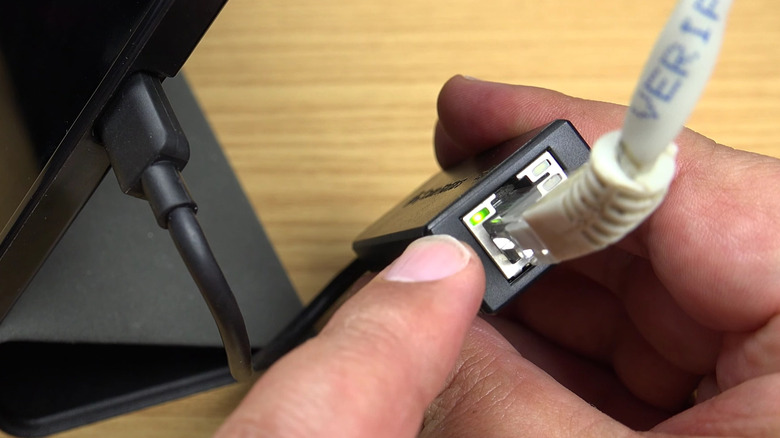
While Wi-Fi connectivity has become mainstream, it isn't the fastest or the most stable for many home users. The speed fluctuates, latency spikes, and lag is often a problem, especially as you move away from the router. If you are a gamer, this can be a major issue. Even if you're just downloading a lot of files, a stable, high-speed internet is always preferable. This is where your Android tablet's USB-C port can help, letting you set up a wired connection directly from the router.
All you need is an Ethernet cable and an Ethernet-to-USB-C adapter. Simply plug the adapter into the USB-C port on your Android tablet, and then connect the LAN cable to the adapter. If your Android tablet supports Ethernet connectivity, it should instantly connect to the internet. To verify that on your Samsung tablet, open Settings, go to Connections, then More connection settings, and check whether Ethernet is turned on. If it's greyed out, make sure the LED indicators on the adapter are blinking. If not, check to make sure all the cables are tightly plugged into the connectors.
When it comes to choosing to use Wi-Fi or Ethernet, the former offers convenience while the latter delivers performance. The choice between the two ultimately depends on your requirements, but knowing how to set up a wired internet connection on an Android tablet can be helpful in a lot of situations.
Mirror your screen to a monitor or TV
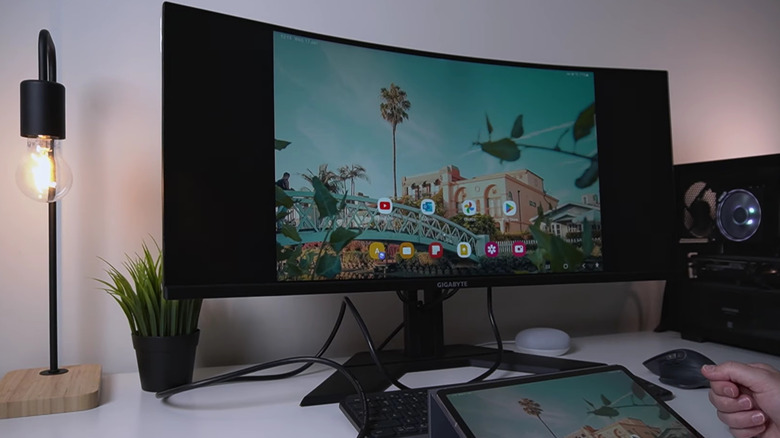
While tablets feature bigger displays than smartphones, they are still no match for monitors and smart TVs. But you can always mirror your tablet's display to a monitor or TV to view stored media or in-app content on a bigger screen. If your monitor doesn't support video over USB-C, you will need a USB-C-to-HDMI adapter to make the connection, since HDMI cables can't be directly plugged into the Android tablet.
Simply connect the USB-C-to-HDMI adapter to the tablet (or use a dock if you have one), then plug the HDMI cable from the monitor into the adapter, and it should mirror the screen. If you are into multitasking or just need another display, you can also use the tablet as a second monitor. In some cases, you could make these connections wirelessly, but you should prioritize wired connectivity if possible, as it's generally more stable and minimizes lag. Once you set things up, the tablet instantly transforms into a simple streaming device, all the more useful when a show or video can only be streamed on the tablet and not natively on the TV (such as with sites coded specifically for a mobile experience).
Charge other devices
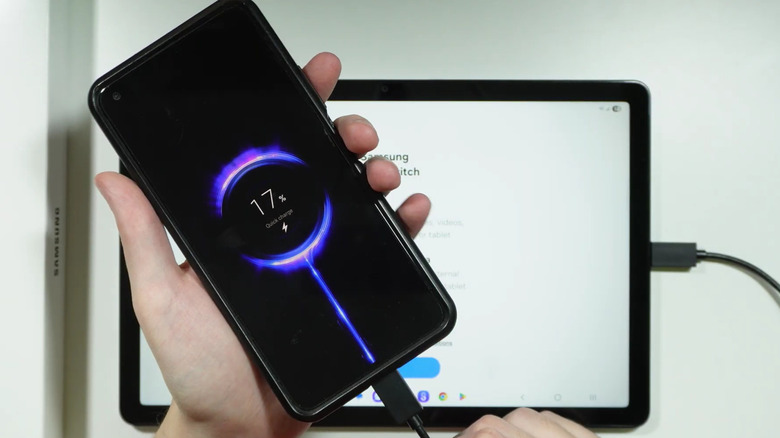
You can obviously use your tablet's USB-C port to charge the device, but you might not realize that you can actually reverse the process and charge other devices from your tablet. This includes other tablets, smartphones, earbuds, smartwatches, and more. Any gadget that features a USB-C port and doesn't draw a lot of power should ideally work pretty much the same as the USB port on your router. And this is really simple, since you don't need an adapter or anything else to set up reverse charging.
Just connect a USB-C cable to your Android tablet and plug the other end into another device, say a smartphone or earbuds, that also has a USB-C port. If your tablet supports reverse charging, it should start supplying power as soon as the other device is connected. In case it doesn't, make sure you have turned on "Charge connected device" on Samsung tablets or the equivalent setting on other Android tablets.
Keep in mind that your tablet isn't a replacement for a dedicated power bank, but in an emergency, you can use its USB-C port to charge other devices. The power output won't be the same as you'd get by plugging into a wall outlet, but it can still trickle charge devices and keep them going until you find a better power source.
Connect controllers, fans, microphones, and more
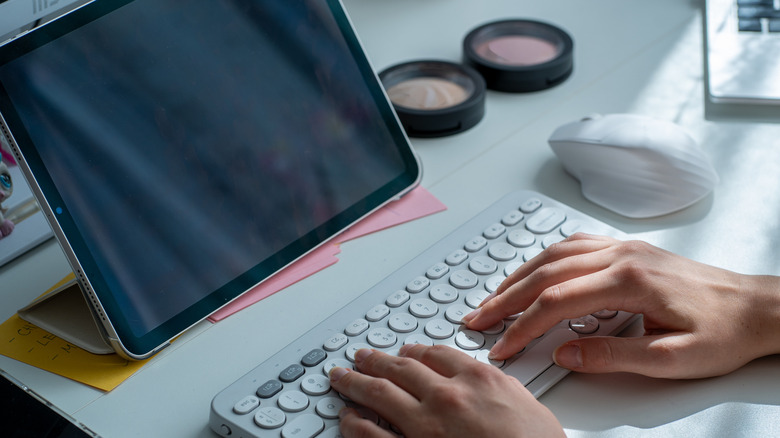
One of the biggest benefits of a USB-C port is that it has streamlined connectivity, allowing you to attach a large variety of devices to your Android tablet, provided you have the right adapter or cable. If you are a gamer, you can add a controller to enjoy a superior gaming experience. Similarly, you can connect a mouse or keyboard to your Android tablet for a more PC-like experience. Content creators can plug in microphones to record audio. If the tablet is running hot, you can even attach a dedicated cooling fan and power it through the USB-C port. Since tablets rely on passive cooling, there's little else you can do, but a cooling fan can help.
The tablet automatically recognizes most of these accessories with little or no setup. If you want to connect multiple devices at the same time, you can use a USB-C hub. Some hubs feature SD card readers and LAN ports, which will let you connect SD cards and Ethernet cables for wired connectivity, in addition to other devices.
So if you only use your Android tablet's USB-C port for charging, it's time you utilize these smart functionalities and transform your tablet into a productivity powerhouse. It doesn't take a lot of effort, and with the right setup, your Android tablet may even be able to replace a laptop under some limited circumstances. However, a laptop remains the first choice for most long-term working setups.