

5 Clever Ways To Use Gemini On Android Auto
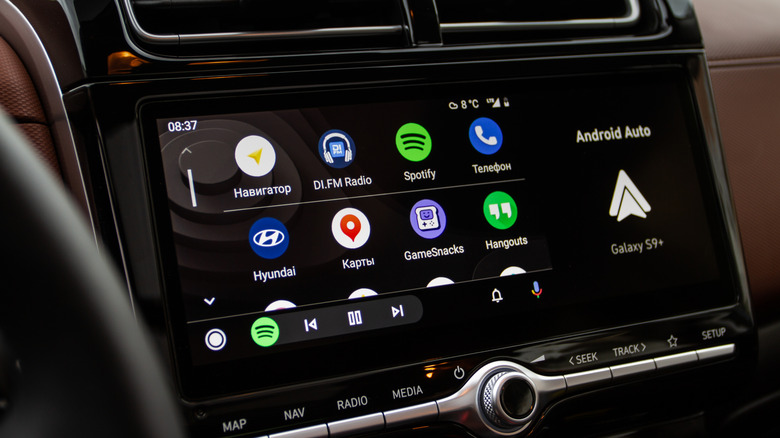
So long, Google Assistant — Android Auto has Google Gemini now. For those that use Google's in-vehicle infotainment system app, the voice-controlled Google Assistant has been replaced with Gemini, the company's artificial intelligence model. Users will still be able to access this assistant using their voice, but how it is interacted with may be far different. We've already begun taking a look at some of Google Gemini's best features for Android Auto, but now we want to pursue some ways users can get the most out of the tech.
With the new Gemini assistant, Android Auto users are able to control their navigation fairly easily. Adding stops or getting certain information can now be easier, as you no longer need to memorize specific commands to have it address your queries. It's handy for not taking your eyes off the road, and it can perform a variety of tasks such as answering messages or providing you with information about local eateries.
Getting started with Gemini on Android Auto is pretty straightforward — just make sure you have the Gemini app installed on your phone. You'll see a tooltip on your car's display if the AI assistant is available. From there, you'll have access to Gemini, and you activate it by saying "Hey Google," tapping the microphone on your screen, or pressing and holding the voice command button on your steering wheel. Keeping this in mind, there may also be some essential Android Auto apps you should install if you're really looking to improve your experience while on the road.
Stay on top of your email
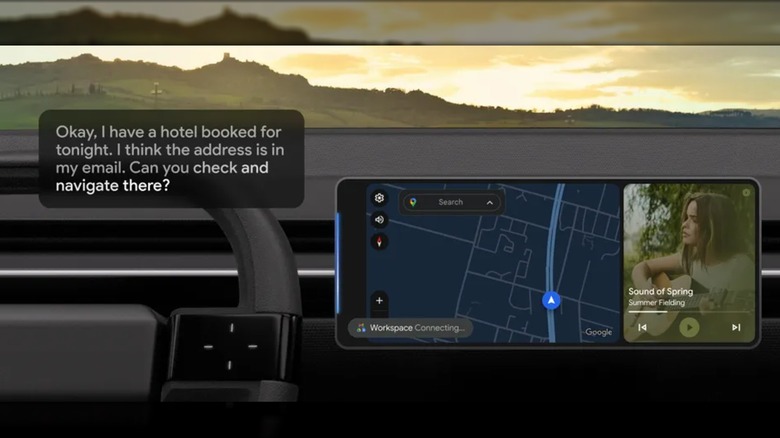
Even during a car trip, it's never a bad time to receive information. One of the cool things about Gemini is that you can use the assistant to check your emails. There are more than a couple of ways to get some use out of it, and you can even add information you obtain there to other apps, such as adding items to a to-do list or having Gemini take a quick note for you. Let's look at a specific example.
You can say to Gemini something like "Hey Google, I am going to a concert tonight. The tickets and address are in my email. Can you double check and provide me with directions to the show?" Gemini will search for the email and try to find the location of your concert, which it can then add to your route. Additionally, you can also request the AI assistant to provide you with a summary of any unread emails.
You can get rather specific when talking to Gemini about your messages, which can be helpful when you're trying to drive. If you ordered something online, you can ask Gemini when it's arriving, or you can even have it check for coupons you may have been sent. However, you may want to make sure you're using the right USB cable for Android Auto if you have a wired connection and are looking to get the most out of the feature.
Keep up with your text messages
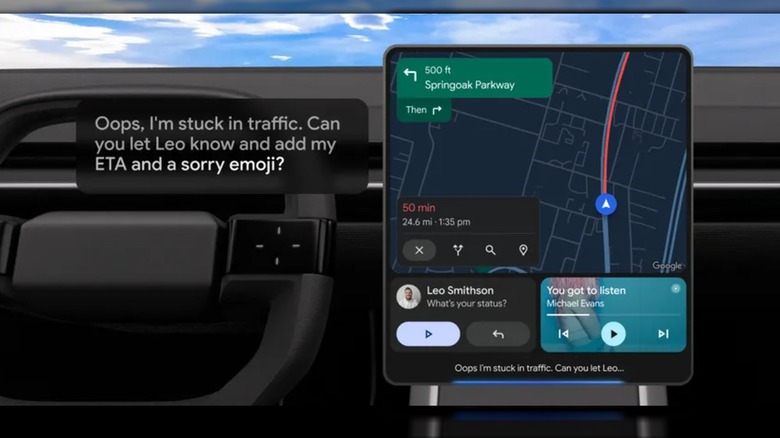
Having access to your email while you drive can be nice, but Gemini also works with your messaging app. Along with being able to have the assistant summarize your recent messages, you can have it send responses in over 40 different languages — it can take care of the translation part, as well. Like others on this list, Gemini can perform more than one task at once, so you can ask it to complete multiple tasks at a single time.
To show how to use it, let's say you're running late to something important with your friend James. Rather than pull up Google Maps and find your ETA, you can say to Gemini something along the lines of "Hey Google, can you tell James that I'll be late due to traffic but I still have the flowers. Can you give them my ETA and ask if they need anything else?" Gemini will send the message, and you can even add another destination to your route should you need to.
Gemini works with group messages, as well, meaning you can have the assistant summarize a chat to get the important parts of a conversation. You can even add emojis to messages just by asking. Of course, it can also really help to know some of the best tips and tricks for better audio with Android Auto if you're looking to really take advantage of Gemini.
Learn more about a business or region
Along with being able to handle email and messages, Gemini can also help you find food locations. If you're looking for a pizza shop while you're on the road, for example, you can say to Gemini "Hey Google, what are the best pizza spots that are open along my route?" Gemini can provide you with some choices, but it's also capable of providing some deeper information, should you need it.
You can get operating hours for a local business from Gemini, but be sure to ask for location recommendations that are close to your route or destination. Additionally, once you have found a place that might hit the spot, you can ask Gemini about what food items are popular at the restaurant, or even ask if a certain item is well-reviewed by guests. If you brought along your dog as a travel companion, you can even ask if a location is dog-friendly.
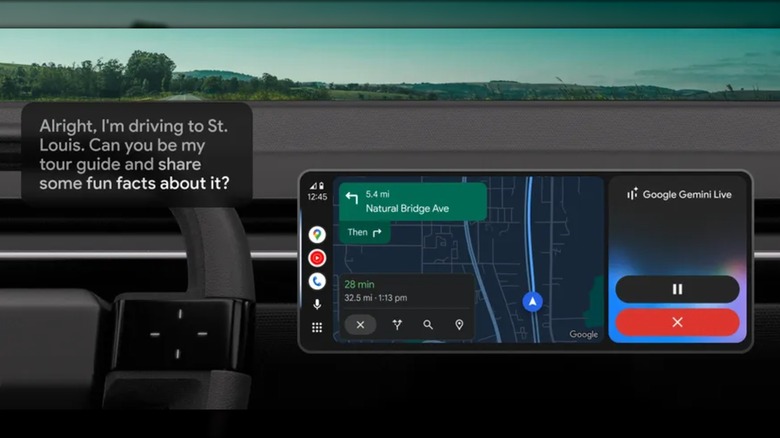
You can also ask for some additional information about a specific region. Say you're taking a weekend trip to Las Vegas and want to learn some information about the area to impress your card dealer. Just ask Gemini to be your tour guide, and it will spit out a variety of information that can teach you more about the area. This has a lot of overlap with the Google Maps upgrade that brought Gemini to the app, which also includes new features like EV charging information and receiving driving directions based on real-world landmarks.
Have DJ Gemini control the tunes
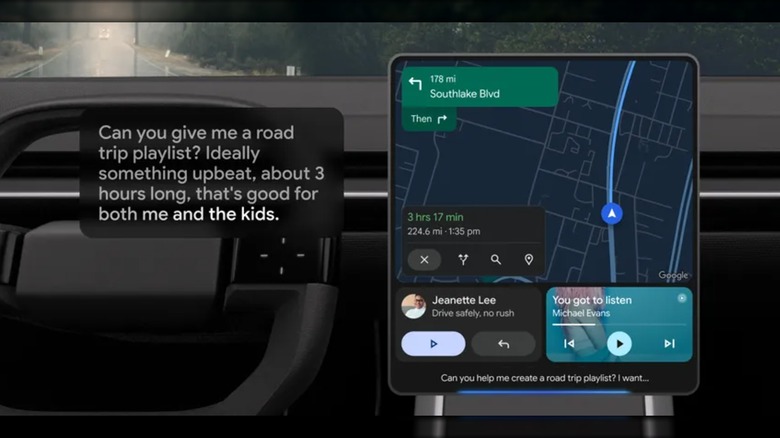
A good playlist or soundtrack can make or break a long drive. For some, finding the right song can even be crucial for taking a quick drive to the nearest convenience store. Something important to remember about Android Auto is that it can lock you out of your keyboard or prevent you from scrolling through menus while you drive, so you may need to use Gemini to access Spotify or YouTube Music. Let's take a look at some specific use cases.
Asking Gemini to find you a specific song, album, or artist is pretty straightforward — simply ask something along the lines of "Hey Google, can you play the Spanish version of David Lee Roth's 'Yankee Rose'?" and Gemini will get things going. You can even make sure that the assistant continues to play songs from the entire album, if you want to. If you're still going the radio route, you can also ask Gemini to pull up a specific XM radio station.
Gemini also works with accessing playlists. Try something like, "Hey Google, I've got a 7-hour drive, can you give me a playlist that's energetic and kid-friendly?" You might not get David Lee Roth from the results, but Gemini will meet your demands, nonetheless. Keeping this in mind, there can be some settings that may be ruining your Android Auto experience, including options surrounding Spotify.
Make Gemini your driving buddy
While there's a number of ways to use Google Gemini with Android Auto as you drive, you can also try holding a conversation with the assistant just to see what it produces. The AI assistant has a decent amount of versatility when it comes to holding a conversation. If you want to get things going, you can simply ask something like "Hey Google, let's have a chat."
One way to get the ball rolling when conversing with Gemini is by asking it questions. You can start by asking it about a specific topic, and Gemini may ask you if you want more information about the subject. Remember that if you're already interacting with Gemini, you don't need to say "Hey Google" each time — rather, you'll need to manually end the chat with Gemini. A conversation may pass the time better than searching for the best major podcast apps and seeing what they have to offer.
While it can be good for idle chit-chat, you can also use Gemini for some real-world practicality. For example, if you're driving to your parents' anniversary dinner, you may ask Gemini for some ideas on what to get them as a gift. Something like, "Hey Google, I'm going to an anniversary party for my parents, what are some good ideas for gifts?" and Google can help provide some answers. If you've got Android Auto and Google Gemini, give this one a try to see what conversations you bring about.