

What Does The Yellow Circle Mean On Your Apple Watch?
With the many features packed into the Apple Watch, it needs a battery that's up to the task of supporting those functions over the long haul. That's what Apple delivered with its latest lineup of smartwatches. The newest Apple Watches can run for 18 to 42 hours between charges if you include sleep time, so you can make the most out of them. But no matter how long-lasting the Apple Watch's battery usually is, it's bound to run out of charge sooner or later, and maybe sometimes when it's most inconvenient for you.
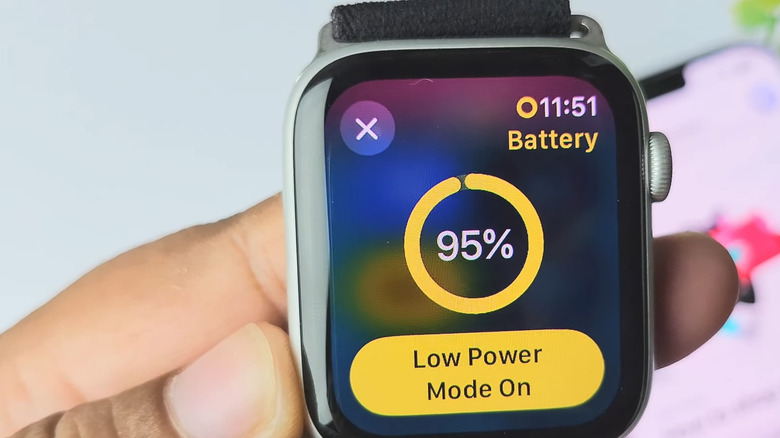
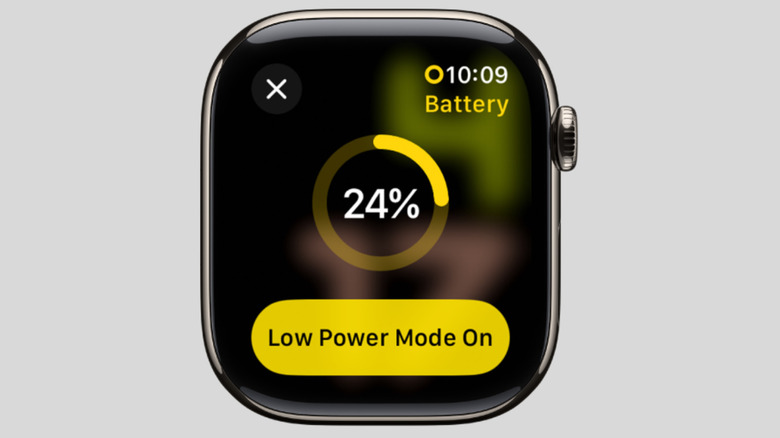
If you need to squeeze more runtime out of the smartwatch, there are a few nifty tips and tricks you can do to improve the Apple Watch's battery life — one of which involves a yellow circle in your status bar. This yellow circle on your Apple Watch just means that Low Power Mode is activated. It's essentially the equivalent of your iPhone's battery icon turning yellow. With Low Power Mode on, your Apple Watch Series 11 can go from just 24 hours to an impressive 38 hours of continuous activity. It does so by disabling features like background blood oxygen readings, gestures, and Always On display. However, Low Power Mode on the Apple Watch doesn't turn on by itself: You have to set it up first.
How to enable Low Power Mode on your Apple Watch
Low Power Mode joins a host of other simple Apple Watch tricks everyone should be using to extend the battery life. Conveniently, your Apple Watch will send you a Low Power Mode alert once your battery level reaches 10%. Once you get the alert, you have the option to enable the feature from there. But you don't always have to wait for your battery to drop to 10% before you can use Low Power Mode. If you prefer to turn it on earlier, here's what you need to do:
- Go to the Control Center on your Apple Watch.
- Select the battery percentage tile.
- Tap on Low Power Mode.
- To activate it, press Turn On.
- To set a time limit for Low Power Mode, go to Turn On For and choose from one, two, or three days.
Immediately after you turn on Low Power Mode, a hollow yellow circle will show up in your Apple Watch's status bar at the top. This yellow circle will stay on as long as you're in Low Power Mode. You'll also notice that other elements, including the battery percentage tile in the Control Center, Nightstand mode time, and charging animation, will change to the same shade of yellow. Low Power Mode (the standard mode without the time limit) automatically gets disabled when you charge your Apple Watch to 80%. You can still manually turn it off from the yellow battery percentage tile in the Control Center, though.