

5 Free Browser Extensions You Should Always Install First
Good browsers work well with their standard features alone. They can protect you when browsing online, autofill your login information, and manage your favorite websites with ease. Some go beyond and add unique features that stand out from the competition, such as Opera's split-screen and battery indicator, and Google Chrome's tight integration with Google's ecosystem.
But even with these built-in capabilities, your browser needs handy extensions to do more.These extensions are lightweight software that you install in your web browser to add new features and optimize existing navigation tools. There are hundreds of thousands of extensions in add-on libraries, so it can be quite tricky to pick just a few. To get you started with the essentials, we've listed five free and must-install browser extensions that support cross-platform use for some of the most popular web browsers like Chrome, Firefox, and Edge. These extensions were selected based on practical value and applicability to common users.
Toby
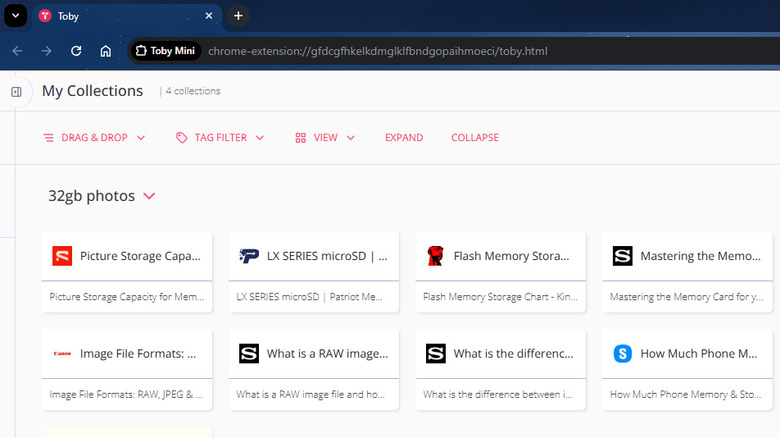
If you're a multitasker, you might have at least a dozen browser tabs open at all times. Before your browser descends into utter chaos while you try to organize all that, it's a good idea to install a tab management extension like Toby, which groups your tabs and saves them in sessions. That way, you can close the tabs you aren't using, keep your browser looking clean, and then reopen them all at once whenever you need them.
How you organize those tab groups is entirely up to you. For example, you can have one for all your social media sites and another for your work-related pages. You can move your open tabs into groups using the Toby dashboard in your browser by dragging and dropping them from the side panel into an existing group. If you want to save an entire window as one group, you can also do so from the same side panel. You can always add and remove a tab from any group at any time.
To make it easier to find a specific collection of tabs on the dashboard, Toby lets you customize them to your liking. You can assign the group a custom name, background color, and a tag, such as "Work" or "Personal." Besides tabs, Toby groups can include notes in a new browser tab to store any text, such as a short description of your Toby group or more links to webpages you want to add later. Toby is available for free on Chrome, Edge, and Firefox, but it requires an account to use and has a limit of 60 bookmarked pages on the free plan. To save unlimited tabs, you have to upgrade to a paid plan.
Just Read
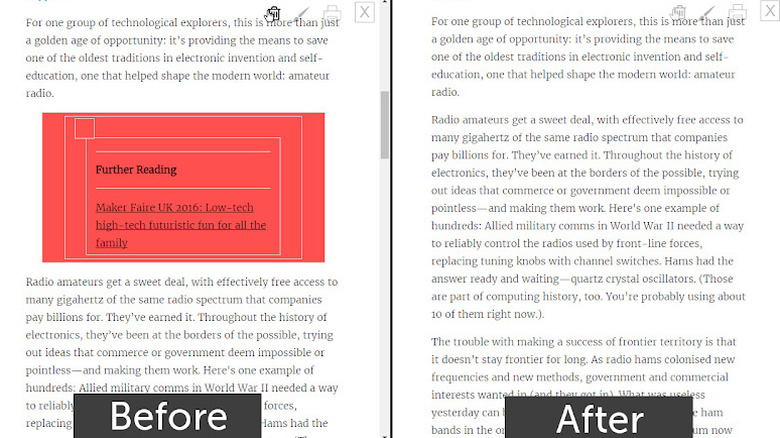
Reading an online article can become difficult when there are too many unnecessary elements on the screen. Sure, Chrome already comes with a built-in Reading Mode, but it simply copies the text to the sidebar and still keeps the original article on the other half of the screen, which makes reading even more confusing. If you're looking for an essential Chrome extension that reformats the entire webpage instead, try Just Read (also compatible with Brave, Opera, Edge, and Firefox).
True to its name, Just Read removes clutter like menus, promotions, and buttons around the article. It even gets rid of the auto-loaded next article and other recommended posts that appear when you scroll past the end of what you were reading. This extension leaves only the article itself in a clear and minimalist background, with the text formatted in a font that's easy to read. This eliminates distractions and creates a reader-friendly interface that is highly customizable. You can set the font size, text color, and background color.
If there are any other parts of the minimized article that you want to strip away, Just Read comes with an eraser tool as well. When you use it and highlight the unwanted parts, they should disappear from the copy. Aside from cleaning up the reading interface, Just Read offers an AI-powered summarizer that shows an overview of the article, so you can skim through the text instead of reading the entire thing. While Just Read's basic features are free to enjoy, you need to pay $24 a year for a Premium plan subscription if you want extra functions like annotation and auto-scroll. While you can make basic changes to the new reading page, you need some knowledge of CSS coding if you want deep customization.
Awesome Screen Recorder & Screenshot
When you record and take screenshots on Windows and macOS with their built-in tools, you don't automatically capture just the content in your browser. You often have to crop out the window frame, menus, and buttons. While browsers like Firefox and Edge do that cropping automatically, their native tools can't record the screen and are limited in functionality. If you're after a more advanced screenshot and screen recording tool for your browser, you might want to check out Awesome Screen Recorder & Screenshot. You can add this extension to Brave, Chrome, Edge, Firefox, Opera, Vivaldi, and Yandex.
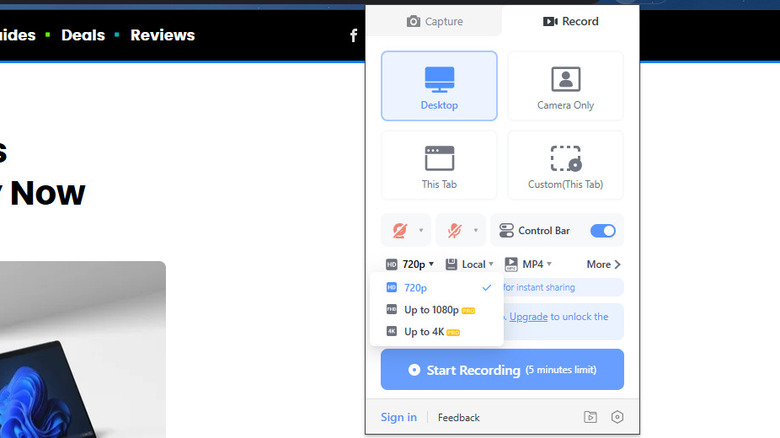
For the screenshot tool, Awesome Screen Recorder & Screenshot allows you to choose exactly what to capture: only the visible part of the screen, a specific area, or the entire page — the extension scrolls the page to capture it in full. You can also set a delay, so the tool only captures the area you want after the timer runs out. After taking the screenshot, an editor opens up, where you add effects or annotate the image with text and shapes. The extension's screen recorder tool is just as customizable. It can capture your entire desktop, the current tab only, or the image on your camera. Once you're done recording, Awesome Screen Recorder & Screenshot lets you download the video or edit it right in the browser.
Unfortunately, some of the extension's helpful tools are locked behind a subscription. For instance, recordings can only last up to five minutes, and their resolutions are limited to 720p. You can only take up to 100 screenshots and use basic annotation tools.
Enhancer for YouTube
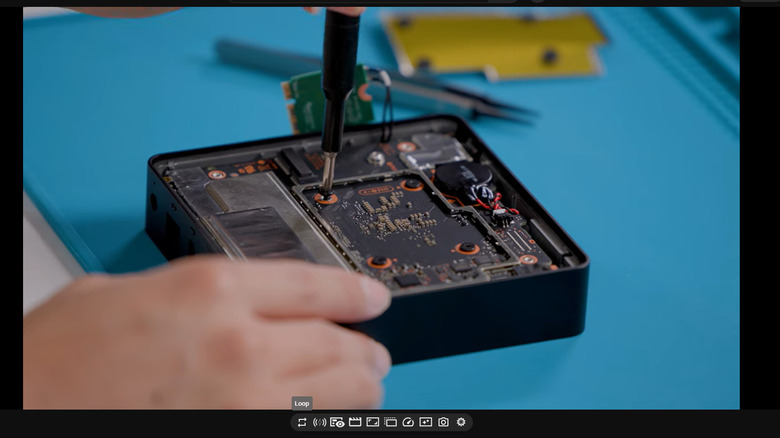
If you spend a lot of time on YouTube, there's a high chance you hate using its default controls. Adjusting playback speed takes more clicks than it should, taking screenshots is awkward without a built‑in tool, and boosting the volume past the limit requires relying on your desktop instead of the site itself. Enhancer for YouTube can solve these limitations on Chrome, Edge, and Firefox.
This essential browser extension adds a new control bar under every YouTube video you watch. From this control bar, it becomes quicker and easier to loop the video, take a screenshot of the current frame, enter cinema mode, change the speed, and apply video filters. To better cater to your needs, the control bar is customizable and lets you pick which of the 18 available controls to add to it.
Beyond customizing the control bar menu, you can also change many other aspects of Enhancer for YouTube. For instance, you can set a default playback speed for all the videos you play moving forward. If you want to ignore YouTube shorts, Enhancer for YouTube lets you hide them from the feed along with other elements like related videos, chat, and comments. It can disable auto-play for the tabs you're not actively using so that you don't suddenly hear a mashup of videos and spend ages trying to figure out where the sounds came from. Other settings you can edit on Enhance for YouTube include playback quality, volume, and keyboard shortcuts. Enhancer for YouTube is feature-packed, but it can be quite overwhelming to set up at first. The settings page can confuse new users, so there might be a bit of a learning curve before you can make the most out of it.
UBlock Origin Lite
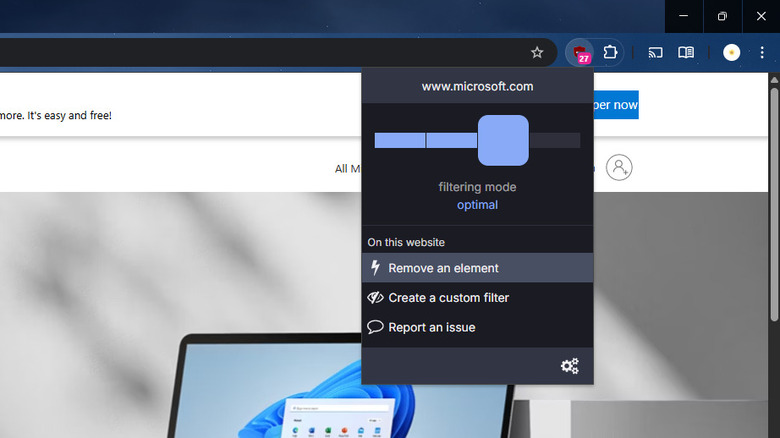
Ads are an inevitable part of browsing online, but sometimes, you want to make them disappear. One of the most popular ad-blocker browser extensions out there is uBlock Origin Lite. It's supported across major browsers like Chrome, Edge, Firefox, and Safari. Plus, it's open-source and completely free to use.
The uBlock Origin Lite extension works immediately after installation with no setup needed. It offers four filtering modes: No Filtering, Basic, Optimal, and Complete. No Filtering, as you might have already guessed, doesn't remove ads. Basic Mode blocks ads using only the basic network filtering rules from the built-in filter list. Optimal Mode uses advanced filtering and extended rule sets. Finally, Complete Mode works like Optimal but adds extended filtering rules as a basis for what ads to block. You can readily change what ad filtering mode to use for each website you visit.
UBlock Origin Lite can also filter any element from a website, like side menus, banners, and ads that weren't filtered automatically. This extra feature can come in handy when you don't want those elements to show up every time you visit the website, maybe because they're distracting, oddly placed, or irrelevant to you. The extension works fine for the most part, but it doesn't work on every website. For instance, uBlock Origin can indirectly prevent YouTube video playback because Google sees ad blocking as a breach of its terms of service. If YouTube detects the extension, it may refuse to play videos while it's on.
How we selected these free browser extensions
When selecting the browser extensions to include in this list, we focused on how useful the extension would be to most users and how it could improve the overall browsing experience. We also took into account whether the extension was cross-platform to ensure users with different browsers can install it. Finally, to guarantee they're worthy options, we considered user reviews: All of these extensions have a 4.2-star rating or higher on the Chrome Web Store and have at least 200,000 user reviews.