

5 Essential Productivity Apps Every Android User Should Start Using

Your Android phone has evolved to the point that it can now replace your computer in a pinch. You can use it to email your boss, edit a spreadsheet, and even attend video conferences on the go. But sadly enough, the rise of distracting social media apps made it incredibly easy to treat your Android phone as the enemy of productivity. Every time you hold your mobile, all you do is scroll mindlessly on TikTok and Instagram.
The good news, though, is that there's a fix for this. You can still make your Android device work for you — you just need to install the right apps, specifically, productivity apps. These are apps that help you organize your digital life, manage time, and streamline your workflow. If you're on the hunt for some productivity apps, we've gone ahead and curated a quick list for you. From calendar and to-do apps to document scanners and file managers, here are five of the essential Android apps you need to start using today to supercharge your productivity.
For focusing on tasks: Focus Friend
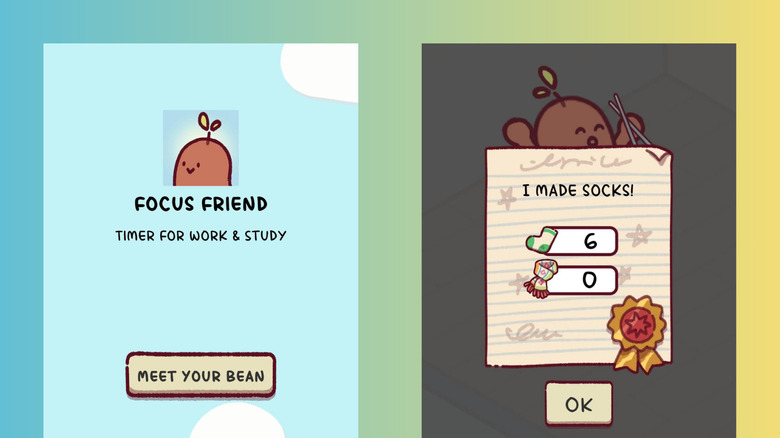
Your phone is a powerful tool for getting things done, but it can also be your biggest distraction. To stay productive and stop yourself from endless scrolling, you'll want to install an app like Focus Friend on your Android phone.
Designed by educational content creator Hank Green, Focus Friend introduces you to an accountability buddy of sorts called your Bean Friend. It helps you stay off your phone by locking distracting apps during your focus session — which, by the way, can last from as short as five minutes to as long as two hours. As you focus on what you need to do, your Bean Friend works alongside you, knitting little socks (and scarves for Pro subscribers). These socks (and scarves) then become your in-app currency, which you can use to buy furnishings like tables and decor for your Bean Friend's rooms. The longer your focus session, the more socks (or scarves) your Bean Friend makes — and the more things you can buy.
Once you accomplish a focus session, your Bean Friend asks you whether you want to start a break timer from five to 45 minutes. After which, you need to create a new focus session. You can always opt to stop a focus session midway, though. When you do, whatever your Bean Friend is knitting gets unraveled, and you won't earn anything. Focus Friend is a cozy app that gamifies your study or work sessions. But while it works similarly to a Pomodoro timer, it doesn't automatically start a next break timer and focus session. That means there's still a chance to get pulled into doomscrolling once your first session ends and your distracting apps get unlocked.
For organizing files: Files by Google
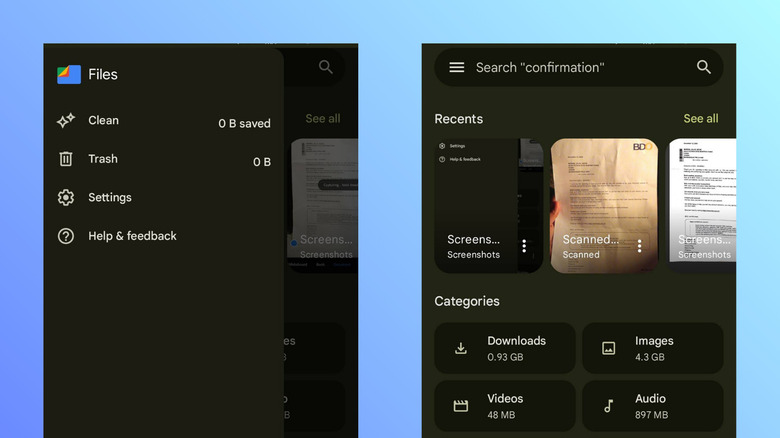
Files by Google is a file management app and one of the underrated Google apps that typically comes pre-installed on Android phones. If you've been on Android for quite some time now, you're probably familiar with what the app is and what it does. But familiarity doesn't necessarily equate to mastery, especially since Files by Google actually offers more than just basic file organization. Yes, on top of helping you quickly find and browse your local files, the app has many other hidden tools, and you might not be using it to its full potential.
One lesser-known feature you need to try on Files by Google is the option to back up files to Google Drive without even opening the Drive app. Simply choose the files to upload, tap "More" in the upper-right corner, and hit "Back up to Google Drive." Files by Google then lets you pick which Drive account to use and which folder to store the files in. With Files by Google, you can also clean up your storage easily. It shows you a list of recommended files to consider deleting, such as old screenshots or large videos. It can clear your temporary app files as well. Right on the app's home screen are two other hidden features: the in-app document scanner and Quick Share. The document scanner transforms paper documents into PDFs, while Quick Share makes it effortless to transfer files from one Android to the next.
Even with these features, Files by Google lacks one handy feature for power users — more advanced file organization tools. You can't add detailed tags to files and folders, color-code folders, or edit icons for the files.
For working with paper documents: Adobe Scan
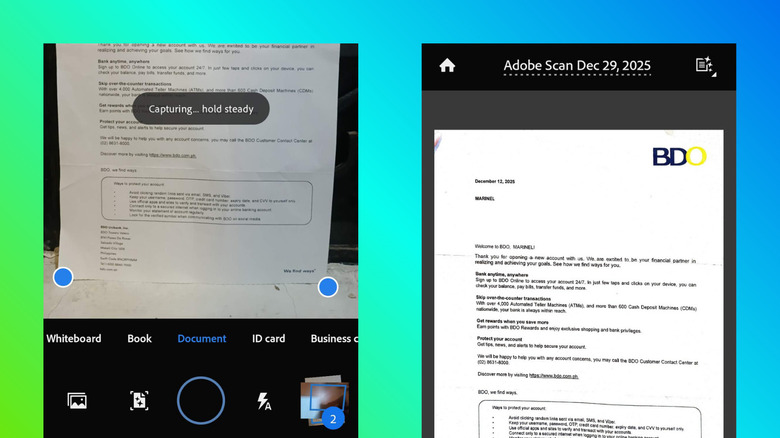
Most documents these days are digital, but some paper ones will pop up from time to time — utility bills, jury duty summons, and tax forms, to name a few. If you want less clutter in your drawers and easy access to these paper documents, you can just convert them into PDFs with a document scanner app. One of the highly-rated options out there is Adobe Scan.
Adobe Scan works with all sorts of physical writing, including documents, whiteboards, books, ID cards, and even business cards. All you have to do is position the material in front of your phone's camera, and wait for the app to automatically find the corners and snap a photo for scanning. Once the page is scanned, you're then taken to the editor screen, where you can modify the image as you wish. You can rotate the page, add handwritten annotations, and erase certain parts. There's also a setting for changing the paper size of the PDF into typical sizes like A4 Portrait and US Letter Landscape. Besides taking a photo of the document, Adobe Scan lets you import existing pictures into the app, too. It will scan these images and have you edit them to your liking in the same editor.
Adobe Scan is free for the most part, but before you can use it, you have to sign in to an account first. Two of its most handy features — the Optical Character Recognition (OCR) and text editing — are also locked behind a subscription.
For note-taking: Notein
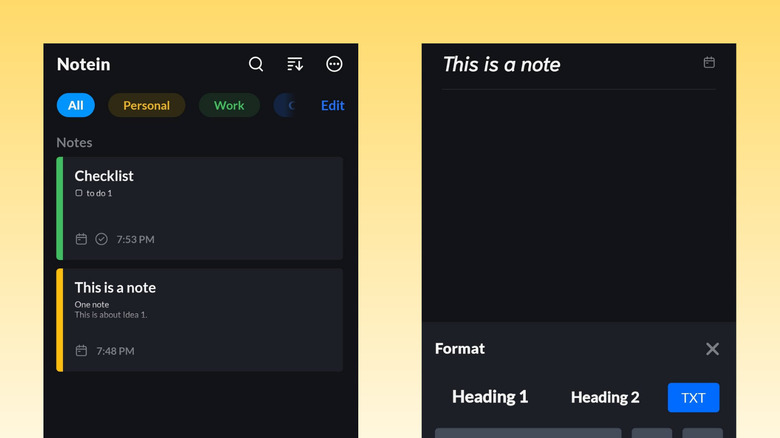
Taking mental notes of everything is impossible. Your brain can only hold so much information, and once it reaches its capacity, you might tend to forget about other important details. With a notepad app like Notein, though, you can write as many notes as you want without ever losing track of anything.
Like most note-taking apps out there, Notein lets you create two types of notes: a plain note and a list. The plain note is the catch-all space for anything you want to jot down, from random thoughts to quick email templates. It features formatting options that can make your entries look more readable and organized. Instead of just basic text, you can format it as bold, italicized, or underlined. You can also change the colors of the text and highlight and tag the notes with personal, work, or custom labels. The list, on the other hand, is a standard checklist with rearrangeable items. While it doesn't have formatting options, it still lets you add personal and work labels for better organization.
Besides note-taking, Notein can add a note or list to your calendar, complete with the date and a reminder time. These scheduled notes/lists can come in handy when you want to remember what pantry items to get when you're out grocery shopping, or what to say to your client when you see them at your meeting. Unfortunately, Notein does have some drawbacks. One of them is the ads popping up in awkward places, and the other is the lack of support for images or drawings inside the notes.
For managing your tasks and calendar: Todoist
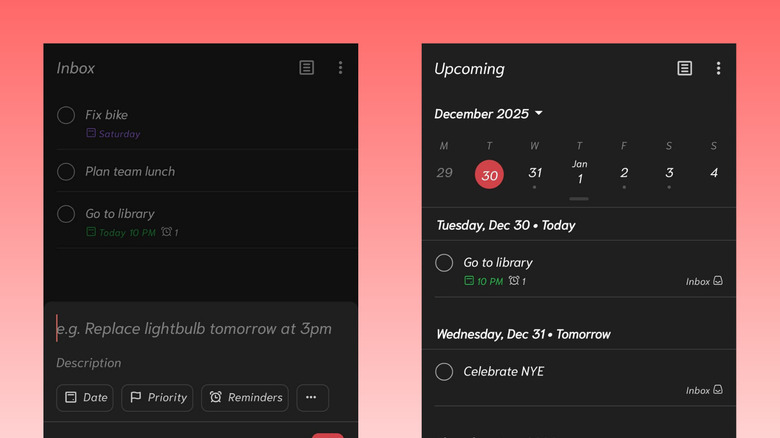
It's easy to feel like you're drowning in the sea of tasks and events you need to juggle. Thankfully, you don't have to get overwhelmed to stay on top of your to-dos. You can easily manage your workload with the help of one handy productivity app for your Android phone: Todoist. Todoist is a to-do app and calendar in one. It comes with an inbox tab, where you can add and view all your tasks, whether they're scheduled or not. If you want a more organized overview of your scheduled to-dos, you can switch to the "Today" tab to check your agenda for the day, or the "Upcoming" tab to know your tasks for days ahead.
When creating a new task, Todoist lets you add a range of details to every one. For instance, you can set the task's priority level from Priority 1 to 4, set a date and time, and use a label for easy browsing. There's also the option to include sub-tasks for the main tasks. For quick and easy access to your tasks, Todoist also features an essential Android widget that you can add to your home screen. This displays your to-dos, so you'll see what needs to be done at a glance.
While free to download, Todoist requires an account sign-up to proceed. All of its features aren't available for free, too. You need a Pro subscription to add deadlines to tasks, set task durations, and access the calendar layout, among others.
How these apps made it to the list
We're committed to recommending only high-quality and highly-rated apps. All of the apps on this list have at least a million downloads and a 4.5-star rating on Google Play Store. They're also personally tested to make sure they fit the bill and are user-friendly enough, with minimal drawbacks.